
A tactile-column control system, in 12 hours of iteration
The control you touch IS the slider you drag. Building it took five layout invariants and a small library of SwiftUI gesture lessons.
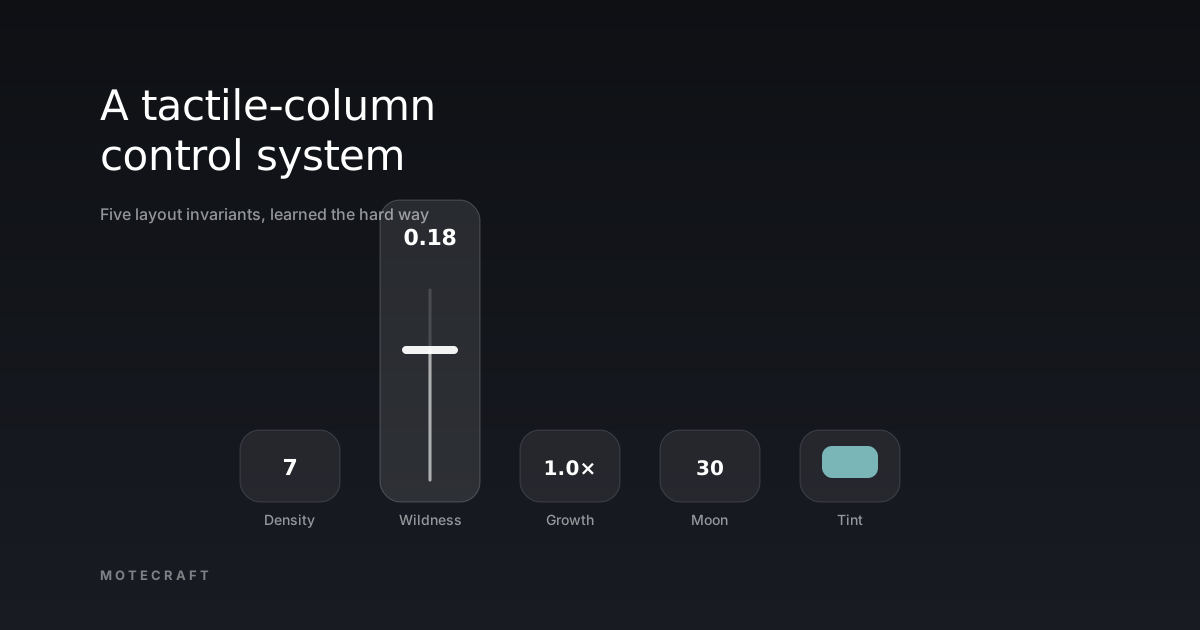
Motecraft's stock control bar is a row of horizontal sliders along the bottom of the player. It works. It looks the part. But for Lichen Bloom, I wanted something more direct — each control should feel like a thumb on a knob, not a finger reaching into a settings sheet.
The pattern I sketched: a row of small rounded buttons at the bottom, the touched one stretches upward into a vertical fader, the user drags, releases, and the button collapses back. The button you touch is the slider you drag. No modal sheet, no popover, no second interaction surface.
Twelve hours later it shipped — but not before five separate bugs taught the same lesson in five different ways: SwiftUI's gesture and animation systems compose in ways the docs don't warn you about. I want to write down what I learned, partly because the next renderer that uses this control system shouldn't have to learn it again, and partly because I haven't seen these gotchas collected anywhere.
The design
◆ Rest → press → release
The key constraints were quick to write down and oddly hard to honour:
- Total column height must be constant. Otherwise the slider next to the one you're touching jumps up too — looks awful, breaks the spatial model.
- Expansion is strictly upward. The button is anchored to its resting position; pressing reveals space above it, not below.
- Value text is anchored to the top edge of the button at all times. At rest, "top" coincides with the visible centre because the button is short. As the button stretches, the value rises with the top edge. The label is the opposite — welded to the bottom, never moves.
- The thumb is a position indicator, not a value indicator. The thumb shows where in the slider you are; the value text shows what you've selected. Two surfaces, one job each, no double-encoding.
- The drag is a delta, not an absolute position. Touch anywhere on the button; the value doesn't snap to the touch point. The delta from where you started touching is what changes the value. This is the rule that makes "respect the last value" not a feature request but a math identity.
Five constraints, one component. The first cut compiled in about an hour. Then I tried to use it.
Bug 1 — the slider expands to the top of the screen
First test: I tap a slider. It stretches up. And up. And keeps going, all the way to the top of the player view, ballooning to about 600pt instead of the 180pt I'd specified. And the other two sliders rise to mid-screen at the same time, even though my finger is only on one of them.
Two distinct problems compounding. The first was the more pernicious because the symptom — "things grew" — pointed in the wrong direction.
I had been using .position(x:y:) inside a ZStack to place the
track tick and the active fill at calculated y offsets. It looked
clean in code:
RoundedRectangle(cornerRadius: 1)
  .fill(Color.white.opacity(0.55))
  .frame(width: 2, height: activeH)
  .position(x: buttonW / 2, y: thumbY + activeH / 2)
What I'd forgotten — what the docs mention but don't underline — is
that .position() is a layout-replacing modifier. The modified view
requests the parent's full proposed size, then absolutely-positions
its content at the specified point. In a ZStack with no upper
size constraint, the parent's proposed size is effectively unbounded,
so the ZStack grows to whatever the proposed size happens to be.
◆ Why .position() ballooned the slider
I replaced every .position() with .offset(), which shifts a view's
appearance without changing what space it requests. The ballooning
vanished.
Invariant #1: Track + thumb use .offset(y:), never
.position(x:y:). Inside a ZStack, .position() is a layout-replacing
modifier and will balloon the parent. There are exceptions to this rule
in bounded contexts; treat them as exceptions and call them out in a
comment.
Bug 2 — the other buttons rise to meet the one being pressed
The second symptom from the same test was simpler in cause and more
embarrassing once seen. When one slider's button grew taller, the
other two buttons in the HStack rose to mid-screen — vertically
centring themselves against the taller row.
HStack default vertical alignment is .center. When one child
becomes 180pt while the others stay at 56pt, the alignment rule pushes
the short ones up to centre against the tall one.
The fix was layered:
HStack(alignment: .bottom, ...)so siblings bottom-anchor instead of centre-anchor against the tallest.- Each slider became its own column with a fixed-height container
wrapping the button. The button sits at the bottom of the column,
with a
Spacer(minLength: 0)above absorbing the difference between the resting height and the column height. When the button expands, the Spacer compresses; the column height stays constant.
VStack(spacing: 0) {
  Spacer(minLength: 0)          // absorbs the difference
  buttonAndContents              // grows from 56 → 180
}
.frame(width: buttonW, height: expandedH)  // constant
Invariant #2: Each slider lives inside a fixed-height column. The
button is bottom-anchored; a Spacer above takes up whatever space
the button isn't using. Parent layout never reflows when the button
expands.
Bug 3 — the value jumps to the bottom of the slider when sliding starts
This one cost the most time. After the layout fixes the slider expanded correctly — but the moment my finger started moving, the value snapped to the range's minimum and stayed there regardless of which direction I dragged.
The trace pointed at the gesture handler:
DragGesture(minimumDistance: 0)
  .onChanged { v in
    // ... math using v.translation.height ...
  }
I'd assumed v.translation.height was measured in screen coordinates.
The default DragGesture measures translation in the view's local
coordinate space, not the screen's. Which would be fine — except the
view's frame is animating from 56pt to 180pt during exactly the
sub-second window the gesture begins.
◆ The .local coordinate-space trap
Translation is computed as current touch location minus start touch location. Both are in the same coordinate space — but the view's local coordinate space was sliding upward in real-time, so even though my finger hadn't moved on screen, the touch's local-y had effectively moved 124pt downward relative to the view. The gesture reported a strong downward drag the moment expansion began. My math read that as "user wants minimum value", clamped, locked.
The fix is one parameter:
DragGesture(minimumDistance: 0, coordinateSpace: .global)Translation is now measured against the screen, immune to the view's local frame shifting under it.
Invariant #3: Any view with a gesture and an animated frame must
use coordinateSpace: .global on the gesture. In .local, the view's
coordinate origin shifts during animation, and the gesture reads
spurious translation that looks like an aggressive drag in the
direction the animation is moving.
Bugs 4 and 5 — drift between gestures, step-rounding jitter
The remaining two bugs were smaller but worth naming because they generalise.
Drift between gestures. On the second drag of a session, the
value didn't behave as if it had been left at, say, 0.18 — it behaved
as if it had been left at the gesture's original default. The bug
was that dragStartValue was being captured inside the
if !isExpanded block, which coupled the anchor to the expansion
animation. Sometimes — apparently on the first onChanged call of a
new gesture — isExpanded was still in its animating-back state,
the conditional missed, and the anchor was either re-captured at a
stale value or not captured at all.
The fix was to decouple anchor capture from expansion state. A new
anchorValue: Double? state, separate from isExpanded, captured on
the first onChanged of each gesture (when nil) and cleared on
onEnded:
.onChanged { v in
  if anchorValue == nil { anchorValue = value }
  guard let start = anchorValue else { return }
  // ... math using `start`, never re-reading `value` ...
}
.onEnded { _ in
  anchorValue = nil
  isExpanded = false
}
Invariant #4: Capture the gesture's anchor ONCE per gesture. Store
it separately from the expansion state. Every later onChanged adds a
delta to that anchor; never re-read the live value mid-drag.
Step-rounding jitter. Density slider has integer steps. As the drag value passed 7.4 → 7.6, the rounded value jumped 7 → 8 in a single frame, and the thumb position teleported a few pixels. Visually this read as snappy, not smooth. The fix was a tiny implicit animation on the thumb's offset:
.frame(width: buttonW, height: expandedH, alignment: .top)
.animation(.linear(duration: 0.08), value: value)
80ms is short enough that the thumb still tracks the finger; long enough that step transitions feel like a small slide rather than a snap.
Invariant #5: Step-rounding glides via an 80ms implicit animation on the thumb's container — never via an implicit animation on the value itself, which would lag the underlying state.
What shipped
The component, MoteTactileSlider.swift,
is about 200 lines including the five layout invariants in the
header comment. Public API is small:
MoteTactileSlider(
  label: "Density",
  range: 3...12,
  step: 1,
  format: { "\(Int($0.rounded()))" },
  value: doubleBinding("density", default: 7),
  buttonWidth: 78,
  trackGradient: nil,              // optional rainbow track
  valueColor: nil                  // optional colour-chip on button face
)
The optional trackGradient + valueColor parameters turn the same
component into a colour picker — used in Ocean
Waves' Tint slider, where the track is a
vertical rainbow strip and the button face is a colour chip showing
the currently-selected hue. Cyan-blue at centre, sweeping through
green-teal one way and magenta-purple the other.
Two experiences ship with it today. Lichen Bloom has four controls: Colour (hue strip), Density, Wildness, Growth — quiet thumb-physics for a calm L-system bloom. Ocean Waves has five: Height, Speed, Moon, Foam, Tint — same component, narrower buttons (64pt) to fit five across, plus the colour-picker variant on Tint.
The next step is promoting the pattern to a system-wide
LayoutPattern.tactileColumn so any renderer can opt in by setting
pattern: .tactileColumn in its ControlsSchema and the bottom bar
takes care of the rest. For now Lichen Bloom and Ocean Waves each
compose their own strip inline and set pattern: .none to hide the
default bar.
If you've read the multi-touch gesture-arbitration
story this is its
sibling. Same gesture system, different angle: there we lost
arbitration to an ancestor DragGesture; here we lost it to a
coordinate-space mismatch with an animation. Five invariants in this
post, three in that one — eight pieces of compositional behaviour I
now know about SwiftUI gestures that aren't in any single place in the
docs. Both are live, both pass through the player, both will quietly
underwrite every renderer the catalogue ships from here on.
◆ See them open
Experiences in this post
The post references one experience from the Motecraft catalog. Tap to open the detail page or just install the app and find them under Ambient.